

Description
Download Carbonite Online Backup – Secure Cloud Backup for Windows & Mac
Overview
Carbonite Online Backup is a cloud‑based data protection service that lets you automatically back up an entire computer or selected files to a remote server. Designed for both home users and small businesses, the software runs in the background, continuously monitoring changes and uploading new data without requiring manual intervention. After a quick registration on the Carbonite website, you install the client, point it at the folders you want protected, and let the service handle the rest. The key selling point is its “set‑and‑forget” simplicity: once configured, you never have to remember to run a backup, and you get unlimited storage for standard file types. While the service caps individual video files at 2 GB, it still covers documents, photos, music, emails, and system files, providing peace of mind in case of hardware failure, ransomware, or accidental deletion. Carbonite also offers versioning, so you can roll back to previous copies of a file, and a web portal where you can retrieve data from any internet‑connected device.
Key Features
- Unlimited cloud storage for standard file types (documents, photos, music, etc.).
- Automatic, continuous backup – no need to schedule or remember manual runs.
- Cross‑platform support for Windows 10/11 and macOS 10.13+.
- Version history for up to 30 days, allowing recovery of earlier file versions.
- Web‑based restore portal accessible from any browser or mobile device.
- Encryption in transit (TLS) and at rest (AES‑256) for maximum security.
- Bandwidth throttling options to limit upload speed and avoid network congestion.
- Backup of external drives (with additional licensing) for comprehensive protection.
- Ransomware detection that alerts you when suspicious activity is detected.
- 24/7 customer support via phone, chat, and email for rapid assistance.
Installation, Usage & Compatibility
Getting Carbonite up and running is intentionally straightforward. First, visit the official Carbonite website, choose a plan that fits your storage needs, and complete the registration process. After payment, you’ll receive a download link for the installer. The software is compatible with the following operating systems:
- Windows 10, Windows 11 (64‑bit)
- macOS 10.13 High Sierra and later (64‑bit)
Installation steps:
- Run the downloaded
CarboniteSetup.exe(Windows) orCarboniteSetup.dmg(Mac). - Follow the on‑screen prompts to accept the license agreement and select the installation folder.
- Log in with the credentials you created during registration.
- Choose the backup mode: “Full PC Backup” for everything, or “Custom Backup” to pick specific folders.
- Set bandwidth limits if you share a connection with other users; the default is 2 GB per day.
- Click “Start Backup” – the client will begin scanning your drive and uploading files to the cloud.
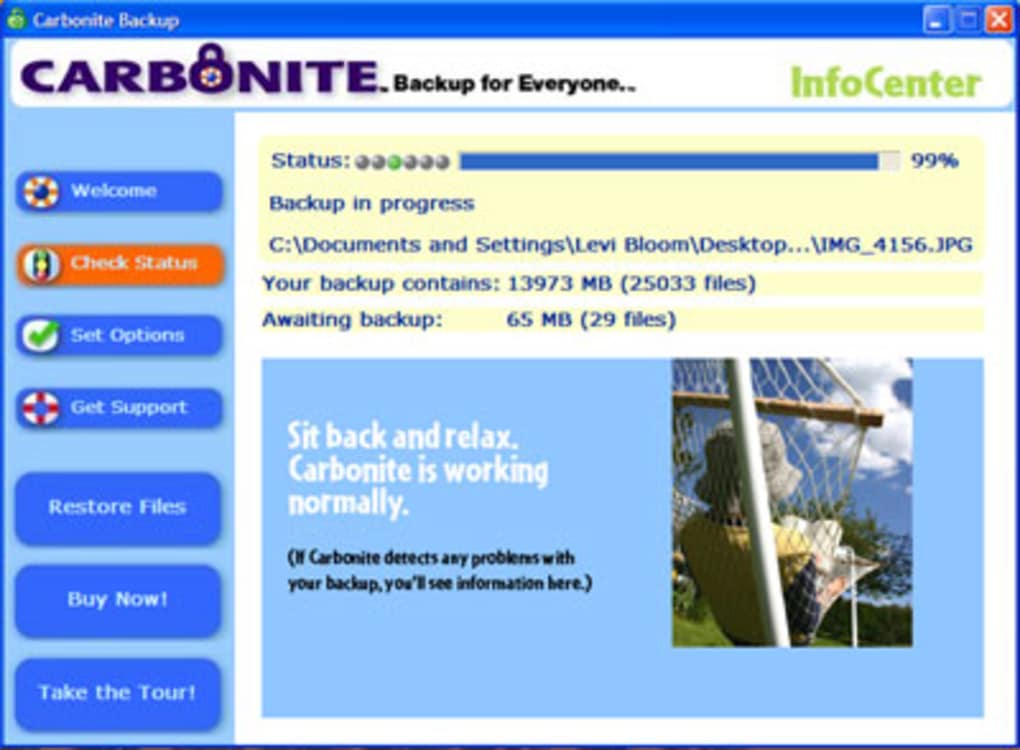
Once the initial backup finishes (which can take several hours depending on the amount of data and your internet speed), Carbonite switches to incremental mode, uploading only changes. You can monitor progress via the system tray icon (Windows) or menu bar icon (Mac). Restoring files is equally simple: open the Carbonite web portal, browse the file tree, and click “Restore.” You can download files directly to your computer or request a full system restore on a new machine. For users with limited bandwidth, the “Throttle” option lets you schedule uploads for off‑peak hours, ensuring that daily work isn’t impacted.
Pros, Cons & Frequently Asked Questions
Pros
- Unlimited storage for most file types eliminates the need to manage quotas.
- Automatic continuous backup removes the risk of forgotten manual backups.
- Strong encryption (TLS & AES‑256) keeps data secure both in transit and at rest.
- Easy restoration through a web portal or the native client.
- Versioning allows recovery of recent changes or accidental overwrites.
- Cross‑platform support for both Windows and macOS.
- Responsive 24/7 support for troubleshooting and recovery assistance.
Cons
- Video files larger than 2 GB cannot be backed up under the standard plan.
- Initial full backup can be time‑consuming on slower internet connections.
- No on‑premises storage option for users who prefer a hybrid backup strategy.
- Higher pricing tiers required for backing up external drives.
- Lack of granular scheduling – backups run continuously rather than at specific times.
FAQ
Can I back up my external USB drive?
Yes, but you need to purchase an additional license for each external drive you want to protect. Once licensed, Carbonite treats the external drive like any internal volume.
What happens if I lose my internet connection during a backup?
The client automatically pauses and resumes when the connection is restored. No data is lost, and the backup continues from where it left off.
Is my data truly private on Carbonite’s servers?
Carbonite encrypts all files with AES‑256 before they leave your computer, and the encryption keys are stored only on your device. This means even Carbonite staff cannot read your files.
Can I restore my backup to a completely new computer?
Absolutely. After installing the Carbonite client on the new machine and logging in, you can initiate a full system restore, which will recreate your files, settings, and even some application configurations.
How long does Carbonite keep previous versions of a file?
Standard plans retain up to 30 days of version history. Higher‑tier plans may extend this period, allowing you to retrieve older revisions if needed.
Conclusion & Call to Action
Carbonite Online Backup delivers exactly what its tagline promises: a simple, secure, and virtually limitless way to safeguard your digital life. Its automatic continuous backup engine eliminates human error, while robust encryption and versioning give you confidence that your files are safe from both hardware failures and malicious attacks. Although the 2 GB video limit and the need for extra licenses for external drives may be a drawback for power users, the overall value proposition remains strong for most home and small‑business scenarios. If you’re looking for a “set‑and‑forget” solution that works across Windows and macOS, Carbonite is worth a serious look.
Ready to protect your data before the next disaster strikes? Download Carbonite Online Backup now and enjoy a 30‑day money‑back guarantee. Secure your files, secure your peace of mind.
Guides & Tutorials for Carbonite Online Backup
How to install Carbonite Online Backup
- Click the Preview / Download button above.
- Once redirected, accept the terms and click Install.
- Wait for the Carbonite Online Backup download to finish on your device.
How to use Carbonite Online Backup
This software is primarily used for its core features described above. Open the app after installation to explore its capabilities.
User Reviews for Carbonite Online Backup 0
No reviews found





